01
A portrait with your own cartoon mural
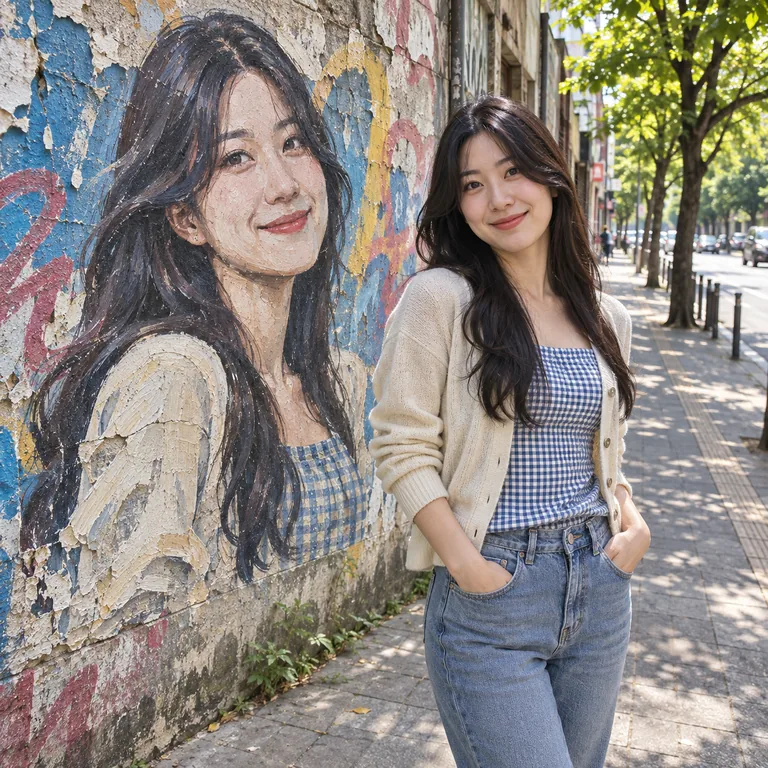
Build a scene with the real subject beside a large painted cartoon counterpart. Clear half-body or full-body portraits leave room for the mural and its details.
Start creating →
Fun portraits
Upload a photo, choose a mural style, aspect ratio and sharing destination. Create a personal graffiti portrait for Instagram, Facebook, Pinterest, Stories or your profile picture.
Upload a clear portrait to preserve your likeness.
Sign in to see credits
Recent creations for this effect
Upload a photo and choose a style. Your generated images will appear here.
Explore the effect ↓AI Graffiti Wall Photo
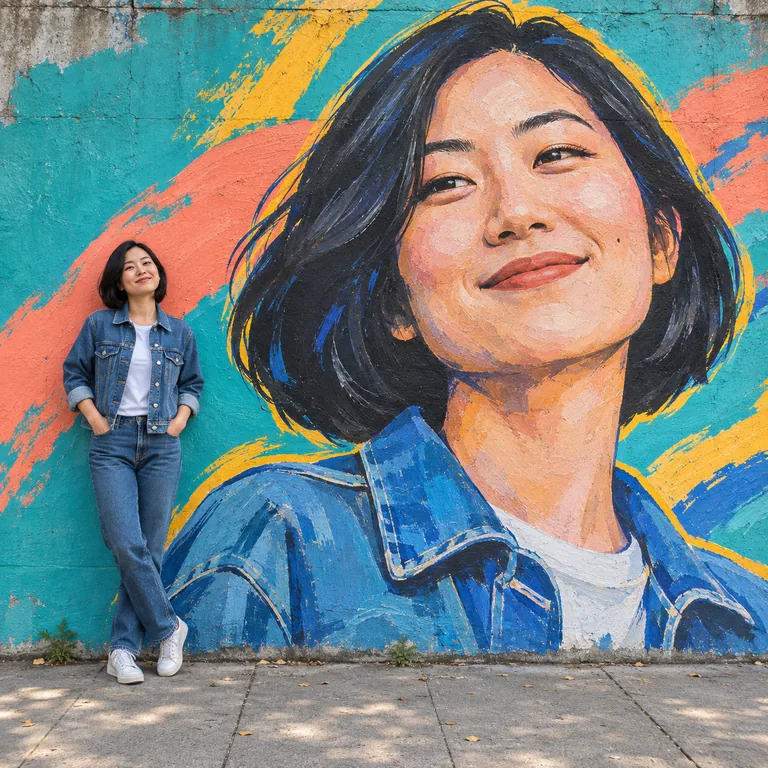
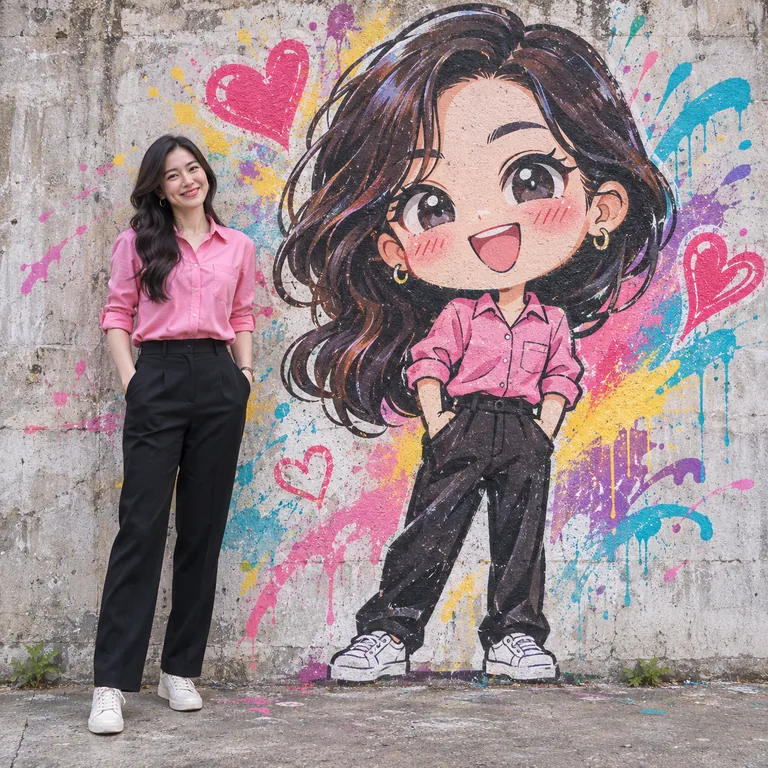
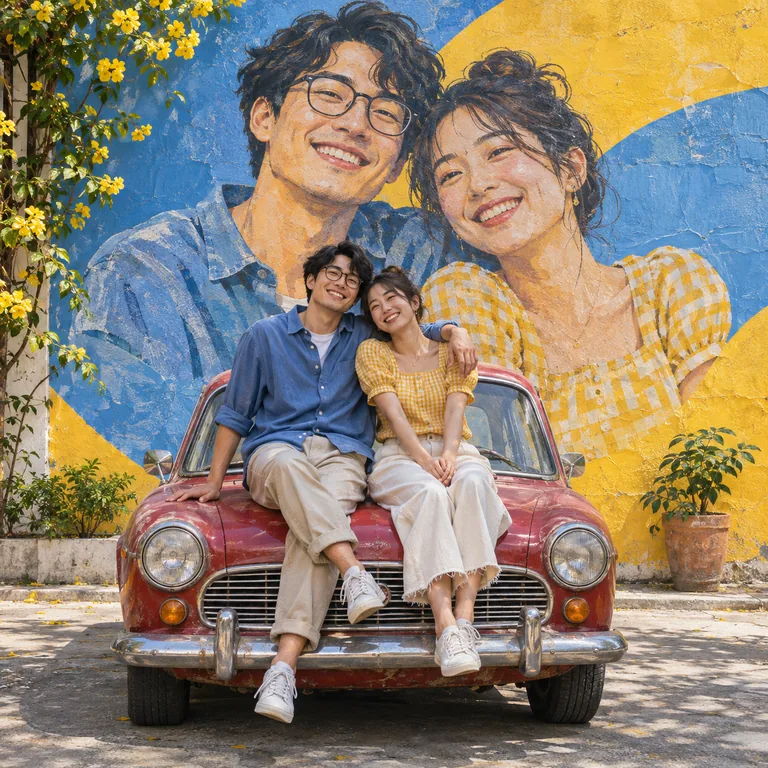
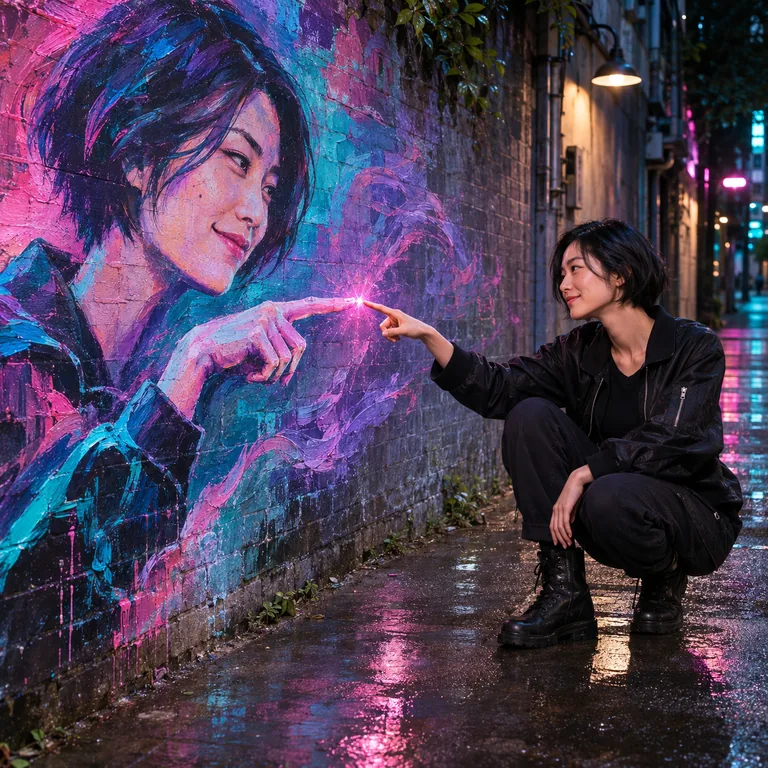
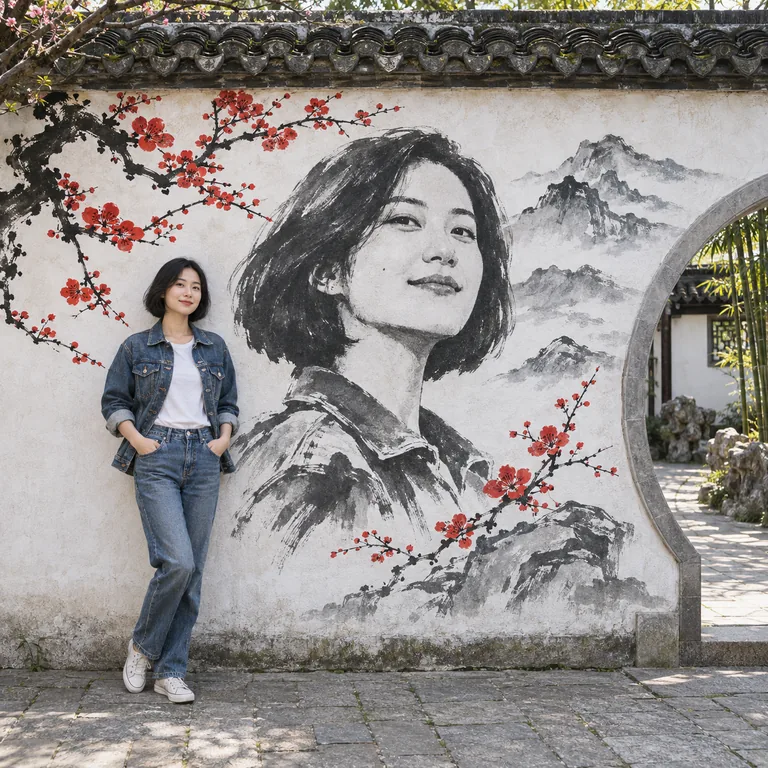
Build a scene with the real subject beside a large painted cartoon counterpart. Clear half-body or full-body portraits leave room for the mural and its details.
Start creating →Choose Realistic Street Portrait, Giant Portrait, Chibi Portrait, Duo Memory, Neon Touch or Oriental Ink. Duo Memory needs a photo of two people; other styles use one person.
Start creating →Turn your portrait into a social photo, a personal keepsake or a graffiti profile picture. The purpose preset adjusts framing, spacing and visual treatment while keeping your mural style. Download the result and upload it to your platform; previews may crop the image.
Start creating →Turn your portrait into a social photo, a personal keepsake or a graffiti profile picture. The purpose preset adjusts framing, spacing and visual treatment while keeping your mural style. Download the result and upload it to your platform; previews may crop the image.
Try 3:4 or 4:5 with natural lifestyle colors and a clear person, outfit and mural.
Create my social photoTry 9:16 for Instagram / Facebook Stories or WhatsApp Status. Keep important details away from the top and bottom.
Create my social photoSwitches to 1:1 with close framing and room for a circular profile crop. The download remains square.
Create my social photoUse a well-lit image with an unobstructed subject. Upload JPG, PNG or WebP up to 20 MB. Leave space around the person for the effect.
Choose Realistic Street Portrait, Giant Portrait, Chibi Portrait, Duo Memory, Neon Touch or Oriental Ink. Duo Memory needs a photo of two people; other styles use one person.
Choose a ratio, then a sharing destination. Profile pictures switch to 1:1 and close framing. Default 1K costs 4 credits; 2K costs 8 and 4K costs 12. Purpose presets do not add a charge.
Review faces, hands and mural details in your results, download the original image and upload it to your platform. Check the crop before posting. Regeneration creates a new paid task and may change details.
Build a scene with the real subject beside a large painted cartoon counterpart. Clear half-body or full-body portraits leave room for the mural and its details.
Use a well-lit image with an unobstructed subject. Upload JPG, PNG or WebP up to 20 MB. Leave space around the person for the effect.
The source guides the result, but AI can change facial details, clothing and composition. Review the image before sharing.
No. Each style has its own prompt. Select a style and upload one clear portrait; custom prompts are not enabled for this effect.
1K is the default and costs 4 credits. 2K costs 8 credits and 4K costs 12 credits. Review the cost before generating.
Downloads preserve the generated image’s original format without conversion.
Timing depends on service load, input and output settings. Check creation history for progress. Review a failure before submitting again; a new submission may incur a new charge.
Generation uses account credits according to current pricing. Sign in to see the estimate before submitting and check the pricing page for plans.
Pricing →Choose Duo Memory and upload a photo with two clear faces. The prompt preserves both identities rather than inventing a partner. Use a single-person photo for other styles.
Choose Graffiti Wall Photo for a person beside a cartoon mural, or Photo Doodle for hand-drawn decorations around a photo. Use the related links below to switch.
Upload a clear photo, select a mural style and ratio, then choose your platform. The preset adjusts framing and visual treatment. Download your result and upload it yourself.
Try 4:5, 3:4 or 1:1 for feed photos and 9:16 for Stories. These are suggested uses, not exclusive platform requirements. Check the platform preview before posting.
Choose Profile picture to switch to 1:1 and request close framing with clear faces inside a circular safe area. The downloaded image is square; adjust the circular crop on your platform.
Feeds, profile grids and avatars may use different crops. Keep important faces near the center and check the preview on your destination platform.
Not necessarily. Regenerating is a new task and can change details and scenery. It costs credits based on resolution. Changing settings does not modify an existing result.