AI Photo Effects

Fun portraits

AI Graffiti Wall Photo

Photo doodles & stickers

AI Doodle on Photo

Journals & Creative Collage

AI Scrapbook Photo Collage

Magazines & Covers

AI Birthday Magazine Cover

Yarn & Clay Dolls

AI Crochet Doll Photo
Explore all effects →
Resources
PricingAPI Platform

Free online audio converter

Shrink a WAV recording for sharing or turn an MP3 or FLAC into a WAV for editing. Convert right in your browser, listen back, and download. No account needed.

Input formats: MP3 / WAV / M4A / OGG / FLAC / AAC

Up to 200 MiB and 20 minutes · Mono or stereo

Output settings

MP3 balances file size and playback compatibility.

Converted audio

Your converted file will be ready to preview and download here.

Common audio conversions and settings

Pick an output for the job. These starting settings cover everything from sharing a recording to delivering audio for an edit.

WAV to MP3: a real conversion test

We converted the same eight-second synthetic tune to a 128 kbps MP3, keeping 44.1 kHz and mono audio. The output was about 82% smaller.

Original WAV · 689.1 KiB

Open audio file · Original WAV

Converted MP3 · 126.2 KiB

Open audio file · Converted MP3

To repeat the test, save the WAV, then select MP3, 128 kbps, Auto sample rate and Mono in the converter.

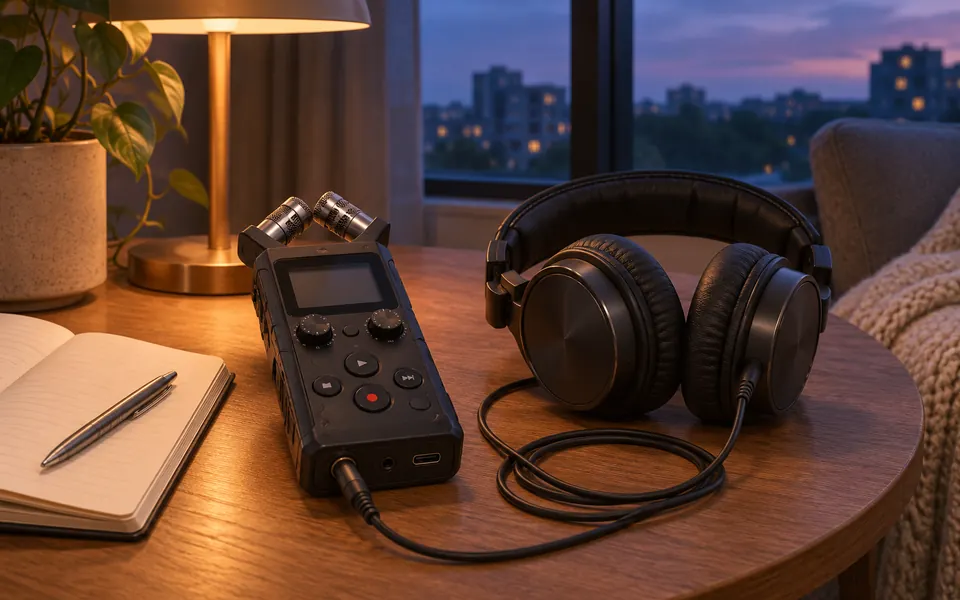
A portable recorder and headphones under a warm lamp

WAV to MP3 for sharing

Turn an uncompressed recording into a smaller copy to send. Keep the WAV if you plan to edit it later.

Suggested settings · For interviews, try MP3 at 128 kbps in mono. For music, start at 192 kbps and keep the source channels.

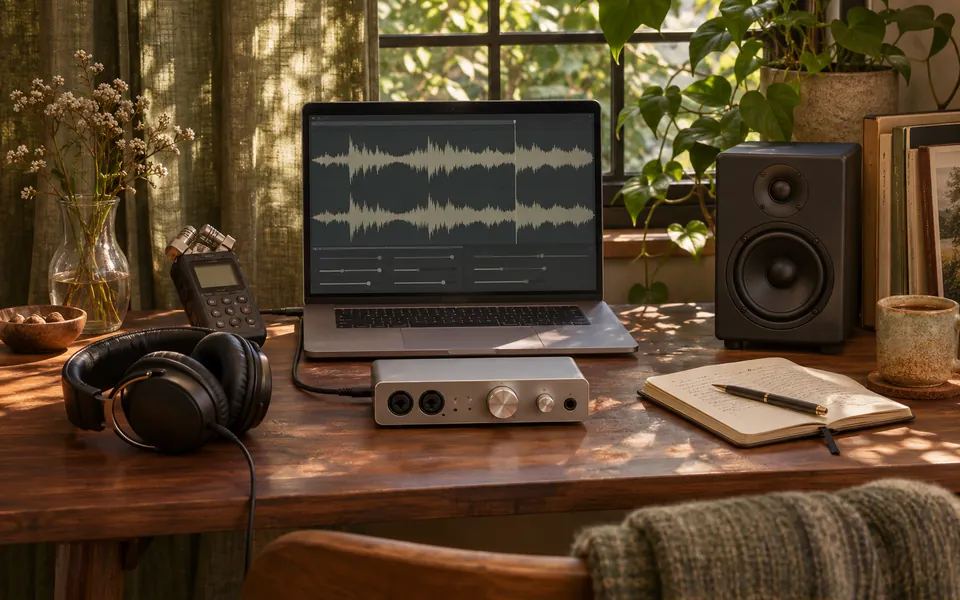
A sunlit editing desk with headphones, an audio interface and a monitor speaker

MP3 to WAV for editing

Decode an MP3 when your editor needs PCM WAV. The extra file size cannot bring back detail lost during compression.

Suggested settings · Choose WAV (PCM). Use 48 kHz and 24-bit if required by your video project.

FLAC to WAV without reducing sample precision

Match the source sample rate, channels and bit depth to retain the decoded PCM samples.

Suggested settings · Choose WAV (PCM), Auto sample rate and Keep original channels. Match the source bit depth.

MP3 to M4A for AAC delivery

Use this if a recipient needs M4A. A second lossy encode may discard more detail.

Suggested settings · Choose M4A (AAC), try 192 kbps and match delivery requirements. Use a lossless master if available.

M4A to MP3 for voice memos

Convert a phone recording for a player or workflow that only accepts MP3.

Suggested settings · Try MP3 at 128 kbps with Auto sample rate. Choose mono for a solo voice.

FLAC to MP3 for smaller listening copies

Keep the lossless original and make an MP3 for a device with limited space.

Suggested settings · Try 192 or 256 kbps and keep the source channels. Listen before lowering the bitrate.

OGG to MP3 for wider compatibility

Convert for a player that cannot open OGG. A lossy source will go through another lossy encode.

Suggested settings · Try 128 kbps for speech or 192 kbps for music and keep the source channels.

AAC to MP3 for delivery

Use MP3 when a recipient requires it. Re-encoding AAC can cost more detail.

Suggested settings · Start at 192 kbps with Auto sample rate, then match the requested specs.

Choose an audio file
Audio waveforms in two colors

Listen to sample audio

Listen to a public MP3 sample, then open and save it to try converting it to WAV or FLAC.

What can you do with the audio converter?

Six input formats, four export formats

Open MP3, WAV, M4A, FLAC, OGG or AAC. Export as MP3, WAV (PCM), M4A (AAC) or FLAC.

Set the output for your project

Choose 96–320 kbps for MP3 or M4A, or 16-bit or 24-bit PCM for WAV. Set sample rate to Auto, 32, 44.1 or 48 kHz, and keep the source channels or choose mono or stereo.

Convert locally for free

The browser loads the encoder and processes the recording on your device. You do not need an account or a file upload.

Listen before you download

Check the voice, music and stereo balance in the player. Download the result before closing the page.

How to convert an audio file online

Choose an audio file

Select one mono or stereo file, up to 200 MiB and 20 minutes long.

Pick an output format and settings

Choose MP3 for easy sharing or match your editor’s WAV requirements for sample rate, bit depth and channels.

Convert, listen and download

Click Convert audio, then preview and download the result. Keep the original if you might need another export.

Audio converter FAQ

Is it free, and do I have to upload my recording?

It is free and requires no sign-in. The browser loads the converter, then processes the file locally.

What bitrate should I use for WAV to MP3?

Try 128 kbps mono for speech and 192 kbps for stereo music. A higher bitrate usually makes a larger file, so listen before choosing.

Will converting MP3 to WAV improve sound quality?

The tool decodes the MP3 to PCM. The WAV is usually larger, and the detail lost during MP3 compression cannot be recovered.

How do I convert FLAC to WAV without losing detail?

For a 16-bit or 24-bit source, keep its sample rate and channels and select an equal or higher WAV bit depth. Reducing 24 bits to 16 changes sample precision.

Does MP3 to M4A compress the audio again?

Yes. M4A output uses lossy AAC encoding. If you have the original WAV or FLAC, encode from that file to avoid a second lossy pass.

Can FLAC restore information lost in an MP3?

FLAC can store the decoded audio losslessly. It cannot recover what the original MP3 encoder discarded.

Can I convert a phone’s M4A recording to MP3?

Yes. Choose MP3, set sample rate to Auto and keep the source channels. For a single voice, try 128 kbps mono.

Can I export OGG or a standalone AAC file?

OGG and AAC are input formats. Choose M4A (AAC) to download AAC audio in an .m4a file.

Why does a long WAV or FLAC export fail?

The converter checks estimated output size. Long or high-resolution files can exceed browser limits. Try a shorter input or an MP3 export for sharing.

Will the output keep the cover art and artist tags?

Cover art is omitted, and tags such as artist and title may be lost. Keep the original if you need its metadata.

Try AI vocal separation