
Journals, Yearbooks & Collages

AI Yearbook Generator for 90s Portraits

Use the AI yearbook generator to turn one selfie into a 90s school portrait. The effect recreates the look of a studio portrait with a mottled backdrop, soft flash and period-inspired clothing. Upload a clear head-and-shoulders photo and specify any familiar details you want to keep.

Upload a photo

Choose a style

Choose a well-lit portrait with the whole head and both shoulders visible.

Output settings

Aspect ratio

Purpose

Keep the selected style in a balanced frame for everyday sharing.

Resolution

Sign in to see credits

Creation history

Recent creations for this effect

Your next creative photo starts here

Upload a photo and choose a style. Your generated images will appear here.

Explore the effect ↓

90s Yearbook Photo

90s AI yearbook portrait example

Start creating ↑
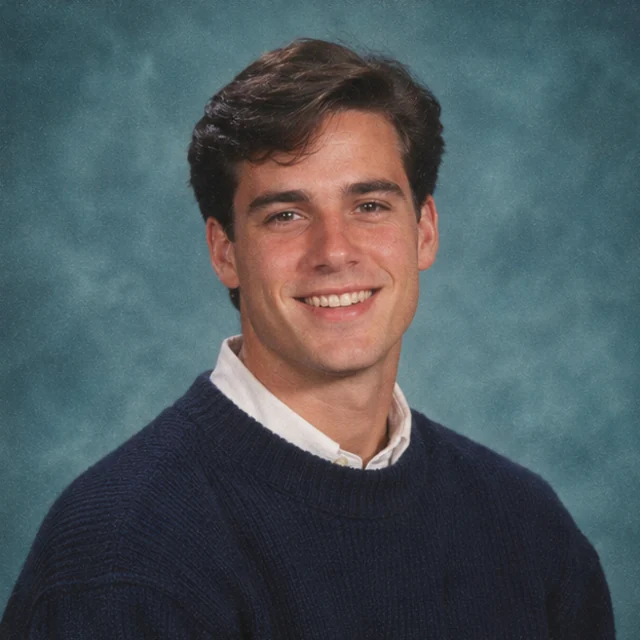
Smiling man in a white collared shirt and navy sweater against a mottled blue-green studio backdrop
AI-generated style example. The soft backdrop, layered collar and subtle grain recreate the studio portrait look of a 1990s yearbook.

What makes a 90s yearbook portrait look authentic

Smiling man in a white collared shirt and navy sweater against a mottled blue-green studio backdrop
01

Look for a classic head-and-shoulders reference

A straight or slightly turned portrait gives the generator a clear view of the eye line, hair and shoulders. Use even lighting to keep the details readable on both sides of the face. A crop that cuts off the top of the head may make it harder to retain your hairstyle. Choose a wider source file if you want to show the sweater, collar or jacket in the finished studio portrait.

02

Choose the era’s visual details

A blue-gray or teal mottled studio backdrop, a collared shirt under a dark sweater and soft flash evoke the 1990s school-photo look. Add a little film grain for texture while keeping fine details like glasses and hair visible. For a more subdued portrait, choose a muted background and one clothing detail. Keeping the requests specific makes it easier to see whether the finished portrait matches the decade you had in mind.

03

Decide which features should stay familiar

If a side part, freckle pattern or pair of glasses makes the portrait feel like you, specify that detail before generating. Describe its location where that matters. Let the wardrobe and background carry most of the retro styling. When comparing the finished portrait with the selfie, look first at the face, then at the hairstyle, glasses and skin tone, and finally at the backdrop and clothing.

04

Crop the portrait for a single picture or a collage

A 4:5 frame leaves room above the hair and below the shoulder line, while a square crop can work for a profile image. For a reunion collage, make each portrait from a separate photo and use the same requested background color and ratio across the set. Place the downloaded portraits in a collage editor so that each subject has their own frame and the arrangement can be edited later.

Start creating →

Share a 90s yearbook portrait

Use 1:1 to keep the face and hair clear in a profile crop. In a feed or story, leave room for the sweater, collar and mottled studio backdrop to carry the 90s look.

Instagram feed

Try 4:5, 3:4 or 1:1. Separate the subject from the background for the mobile feed.

Create my social photo

Stories / Status

Try 9:16. Keep important details away from the top and bottom interface areas.

Create my social photo

Profile picture · 1:1

Switches to 1:1. Center the most recognizable detail with room for a circular crop.

Create my social photo

Make an AI yearbook photo from one selfie

  1. 01

    Upload one clear portrait

    Use a JPG, PNG or WebP file up to 20 MB. Choose a picture with the full head and both shoulders visible for an easier studio-style crop.

  2. 02

    Set the ratio and resolution

    Choose portrait framing for a yearbook-style headshot or a square frame for a profile picture. Keep enough space near the edges for the hair and shoulders.

  3. 03

    Describe the 90s details

    Ask for a mottled blue backdrop and soft grain, for example, and specify anything you want to keep, such as glasses or a side part.

  4. 04

    Review and download the result

    Open the completed portrait in creation history. Compare the face and recognizable details with the original selfie before downloading it for your profile or collage.

90s Yearbook Photo · Frequently asked questions

How many photos does the AI yearbook generator need?

Upload one reference photo per result. A clear portrait with an unobstructed face and visible shoulders works well. If you want a collage of different people, generate the pictures individually and arrange the downloads together.

Can I keep my glasses, facial hair or hairstyle?

Yes. Upload a reference where those details are easy to see and mention the ones you want to preserve. Look closely at the final image to see how they came through in the new studio setting.

Can I copy the look of a real school yearbook?

Use visual cues such as a mottled backdrop, soft lighting and an era-appropriate outfit to recreate the style. The generator creates a fictional studio portrait, with room to add your own caption later in a layout editor.

Does it create a graduation album?

It creates one 90s-style portrait from each photo. To build a page or album, download the finished portraits and lay them out with your own captions and school information in a separate editor.

What kind of selfie works best?

Pick an evenly lit photo with minimal obstruction around the eyes, jawline and hair. A head-and-shoulders frame gives enough reference for the facial features and keeps space for the new collar or sweater.

How can I match the look across several yearbook photos?

Use similar crops and lighting for the source portraits. Repeat the backdrop color, light direction and amount of grain in the instructions for each image. After downloading, align the eyes and shoulders across the layout. The portraits can then read as part of one photo series.

Can I use a cropped group photo as my reference?

Crop the image to one person and keep enough space to see the whole head and both shoulders. If the crop is very small or a face is partly hidden behind someone else, a separate selfie will give the generator more facial detail to work with.

More photo effects

AI Graffiti Wall Photo →

Upload a photo, choose a mural style, aspect ratio and sharing destination. Create a personal graffiti portrait for Instagram, Facebook, Pinterest, Stories or your profile picture.

AI Doodle on Photo →

Add hand-drawn decorations, colorful stars, outline doodles or mini characters to your photo, or build a creative collage. Keep your subject recognizable while choosing a new visual style.

AI Scrapbook Photo Collage →

Upload one photo and choose a scrapbook template. Turn travel scenery into postcards, paste a date photo into a memory page, or use torn paper and tape to record an ordinary day.

AI Birthday Magazine Cover →

If the birthday honoree were on this issue's cover, what would you name the magazine? Upload a photo, choose a layout, and write your custom cover title and birthday headline.

AI Crochet Doll Photo →

Turn the main subject in a photo into a crochet doll. Six templates cover single-person dolls, couples, pets, and owner-pet portraits, plus a preview of a mini keychain hanging from a bag.

Thanksgiving Pet Costume →

Make a Thanksgiving pet costume photo from one picture of your dog or cat. The AI adds a turkey-feather outfit and an autumn setting while using the eyes, muzzle and coat markings in your photo as reference. Use the portrait for a family greeting, a pet profile picture or a Thanksgiving post.

Pumpkin Mocha Photo →

Create AI fall photos from a selfie or portrait using the Pumpkin Mocha effect. Turn your setting into an autumn café with amber window light, orange foliage and a mug of pumpkin mocha. Start with a clearly lit photo and decide how much of the café you want in the finished picture.

AI Brick Photo Filter →

Use the AI LEGO filter to reimagine a car, building or everyday object as a toy-brick scene. The effect uses your photo as a reference for the silhouette, main colors and camera angle, then adds details such as studs, stacked pieces and visible seams.

Explore all effects →

Turn everyday photos into something playful. Choose an effect to start creating.