
Holidays & Seasons

AI Fall Photos with a Pumpkin Mocha

Create AI fall photos from a selfie or portrait using the Pumpkin Mocha effect. Turn your setting into an autumn café with amber window light, orange foliage and a mug of pumpkin mocha. Start with a clearly lit photo and decide how much of the café you want in the finished picture.

Upload a photo

Choose a style

Use a clear portrait. A waist-up photo leaves more room for the mug and autumn setting.

Output settings

Aspect ratio

Purpose

Keep the selected style in a balanced frame for everyday sharing.

Resolution

Sign in to see credits

Creation history

Recent creations for this effect

Your next creative photo starts here

Upload a photo and choose a style. Your generated images will appear here.

Explore the effect ↓

Pumpkin Mocha Photo

AI fall photo example with a pumpkin mocha

Start creating ↑
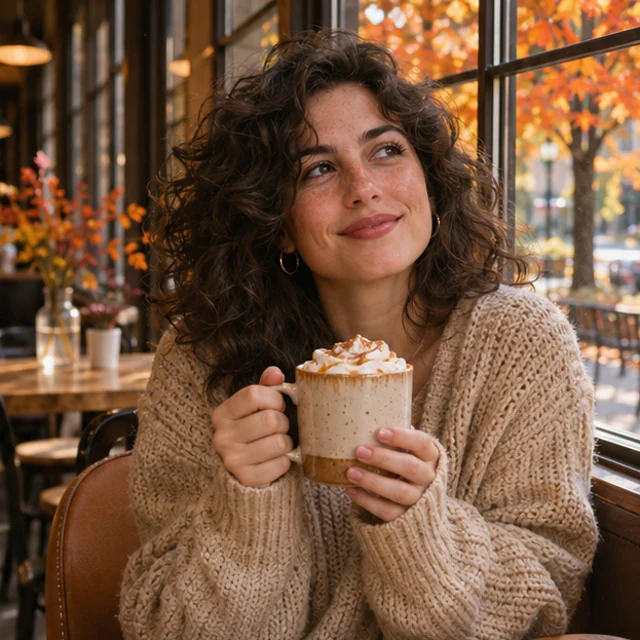
Woman holding a mug of pumpkin mocha beside an autumn café window
AI-generated style example. Caramel light warms the knit sweater, and the fall leaves beyond the window echo the color of the coffee.

What gives AI fall photos an autumn café look

Woman holding a mug of pumpkin mocha beside an autumn café window
01

Build the autumn color around the portrait

Amber, chestnut and warm cream work well for this café scene. Let the warmest tones come from the window light and fallen leaves so you can still see detail in the skin and hair. If you have a black coat or a favorite white sweater in the reference photo, mention its color in your instructions. Keeping a familiar color in the image can help the new background feel connected to your original selfie.

02

Choose where the pumpkin mocha appears

In a waist-up portrait with visible hands, the mug can sit close to your body. For a tightly cropped selfie, put it on the table or a windowsill within the scene. If you want the cup to read clearly on a phone screen, ask for a simple ceramic mug with light foam and a clean rim. Check the handle, fingers and cup placement when reviewing the result.

03

Use window light and autumn leaves to set the scene

A café window gives the picture a direction for the light and a place to show leaves in the background. Ask for soft daylight and a quieter background for a profile picture. For a wider photo, use the window frame, wood table and a few blurred leaves to show where the portrait is set. The scene can suggest a cool autumn day even if the selfie was taken indoors at another time of year.

04

Pick a frame for the way you will share it

A 1:1 crop centers the face and works for a profile picture. Use 4:5 for a portrait with room for both the mug and a bit of background. Try a taller frame for a story if you want the whole table and window in the composition. When choosing a crop, decide whether the viewer should notice the face, coffee or setting first.

Start creating →

Frame AI fall photos for posts, stories and avatars

Keep the face and mug together in a feed post. Use a vertical story to reveal more of the café window and autumn leaves, or crop close for an avatar that keeps the eyes clear.

Instagram feed

Try 4:5, 3:4 or 1:1. Separate the subject from the background for the mobile feed.

Create my social photo

Stories / Status

Try 9:16. Keep important details away from the top and bottom interface areas.

Create my social photo

Profile picture · 1:1

Switches to 1:1. Center the most recognizable detail with room for a circular crop.

Create my social photo

Create an AI fall photo from a selfie

  1. 01

    Upload a clear selfie or portrait

    Choose a JPG, PNG or WebP up to 20 MB. Use a well-lit face as a reference, with the shoulders and hands visible if you want to hold the mug.

  2. 02

    Set the café composition

    Select the output ratio and resolution. For a close-up, ask to put the coffee on the table; for a wider crop, leave room to show the autumn window.

  3. 03

    Describe the details you want to keep

    Mention your glasses, hair part or sweater if those features matter. Add one request about the café lighting or the placement of the pumpkin mocha.

  4. 04

    Review and download your fall photo

    Open the result in creation history. Check that the face looks familiar and that the mug, hands and window light fit together naturally before downloading.

Pumpkin Mocha Photo · Frequently asked questions

Can I make an AI fall photo from an indoor selfie?

Yes. Your original photo supplies the face, hair and other reference details, and the effect builds the autumn café setting around them. A selfie with even lighting and a clean background usually gives the tool a clearer reference.

Is this an autumn color filter or a photo generator?

It uses the uploaded portrait to generate a styled photo that can change the background, lighting and props. The pumpkin mocha and café window are part of the generated scene, so review the new composition after it finishes.

What if my hands are out of frame?

Use the optional instructions to put the cup on a table or a windowsill. This keeps the drink visible while keeping most of the composition focused on your face. A waist-up source photo is better if you want to hold the cup.

How can I keep my skin tone natural?

Start with a picture taken in even daylight and ask to keep your skin tone, with the warm orange color mainly in the room and the leaves. Check the resulting portrait under neutral screen brightness before you share it.

Can I make separate versions for a post and a story?

Yes. Choose 4:5 for a portrait post or 9:16 for a story and generate each composition at its intended ratio. Leave a margin around the face and mug so neither gets clipped when a platform crops the preview.

How do I make the café scene look less staged?

Choose a relaxed pose in the original photo and ask for one simple prop, such as a ceramic mug on a wood table. Keep the window as the main light source. If the first result feels busy, specify which prop to remove and leave the foliage outside the window.

More photo effects

AI Graffiti Wall Photo →

Upload a photo, choose a mural style, aspect ratio and sharing destination. Create a personal graffiti portrait for Instagram, Facebook, Pinterest, Stories or your profile picture.

AI Doodle on Photo →

Add hand-drawn decorations, colorful stars, outline doodles or mini characters to your photo, or build a creative collage. Keep your subject recognizable while choosing a new visual style.

AI Scrapbook Photo Collage →

Upload one photo and choose a scrapbook template. Turn travel scenery into postcards, paste a date photo into a memory page, or use torn paper and tape to record an ordinary day.

AI Birthday Magazine Cover →

If the birthday honoree were on this issue's cover, what would you name the magazine? Upload a photo, choose a layout, and write your custom cover title and birthday headline.

AI Crochet Doll Photo →

Turn the main subject in a photo into a crochet doll. Six templates cover single-person dolls, couples, pets, and owner-pet portraits, plus a preview of a mini keychain hanging from a bag.

Thanksgiving Pet Costume →

Make a Thanksgiving pet costume photo from one picture of your dog or cat. The AI adds a turkey-feather outfit and an autumn setting while using the eyes, muzzle and coat markings in your photo as reference. Use the portrait for a family greeting, a pet profile picture or a Thanksgiving post.

AI Brick Photo Filter →

Use the AI LEGO filter to reimagine a car, building or everyday object as a toy-brick scene. The effect uses your photo as a reference for the silhouette, main colors and camera angle, then adds details such as studs, stacked pieces and visible seams.

90s Yearbook Photo →

Use the AI yearbook generator to turn one selfie into a 90s school portrait. The effect recreates the look of a studio portrait with a mottled backdrop, soft flash and period-inspired clothing. Upload a clear head-and-shoulders photo and specify any familiar details you want to keep.

Explore all effects →

Turn everyday photos into something playful. Choose an effect to start creating.