
Fun Photo Effects

AI LEGO Filter for Brick-Style Photos

Use the AI LEGO filter to reimagine a car, building or everyday object as a toy-brick scene. The effect uses your photo as a reference for the silhouette, main colors and camera angle, then adds details such as studs, stacked pieces and visible seams.

Upload a photo

Choose a style

Choose a photo with a clear silhouette and enough space around the main subject.

Output settings

Aspect ratio

Purpose

Keep the selected style in a balanced frame for everyday sharing.

Resolution

Sign in to see credits

Creation history

Recent creations for this effect

Your next creative photo starts here

Upload a photo and choose a style. Your generated images will appear here.

Explore the effect ↓

AI Brick Photo Filter

AI LEGO filter example with a brick-built car

Start creating ↑
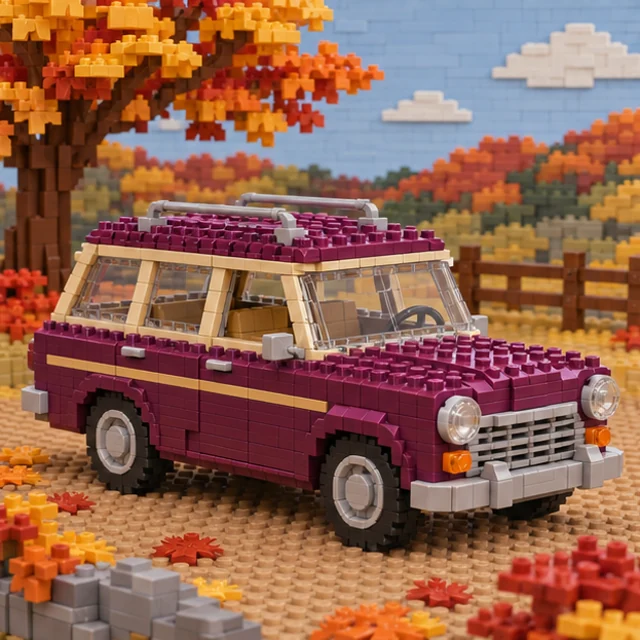
Purple station wagon rebuilt as a studded toy-brick model in an autumn diorama
AI-generated style example. The wheels, long roof and plum body color make the car identifiable, while visible studs and brick seams make the finish read as a miniature.

What makes a photo read as a toy-brick scene

Purple station wagon rebuilt as a studded toy-brick model in an autumn diorama
01

Choose shapes that translate into bricks

Cars with a distinct roofline, buildings with bold windows and objects with clear outlines make good starting points. A three-quarter view shows more of a vehicle or building than a straight-on detail shot. Include the entire main subject in the original frame and leave a margin around the edges. It is easier to tell whether the finished image preserved the silhouette when you can compare the same parts in both images.

02

Decide how much of the scene to rebuild

A plain background puts the focus on the toy model. A photo with trees, a street or a workbench can become a miniature diorama around that model. In the optional instructions, call out one part of the background to simplify and one feature to keep. For example, tell the tool to turn the car and trees into bricks while leaving space around the wheels so the vehicle remains easy to read.

03

Ask for studs, seams and recognizable colors

The look comes from the pieces as much as from the subject. Describe which surfaces should have visible studs and where stacked blocks should appear. If the original car is dark purple with a pale roof, name both colors rather than asking for a generic colorful toy. Check the separation between the body, roof and windows once the image finishes, especially when the source photo was taken in shadow.

04

Frame the finished model like a miniature

Use a spacious crop for a long car or a street scene and a tighter square crop for one small object. When you want people to notice the studs in a thumbnail, ask for fewer foreground props and light from one side. That gives the surfaces shape and makes the outlines easier to read. For a larger image, inspect corners, repeated windows and tires for irregular seams before saving.

Start creating →

Frame your brick-style photo for sharing

Use a feed crop to show a vehicle or a complete diorama, and a story crop to give a tall subject room above and below. For an avatar, center the most recognizable part of the model and keep the studs easy to see.

Instagram feed

Try 4:5, 3:4 or 1:1. Separate the subject from the background for the mobile feed.

Create my social photo

Stories / Status

Try 9:16. Keep important details away from the top and bottom interface areas.

Create my social photo

Profile picture · 1:1

Switches to 1:1. Center the most recognizable detail with room for a circular crop.

Create my social photo

Turn a photo into a brick-style image

  1. 01

    Upload a photo with a clear subject

    Choose one JPG, PNG or WebP image up to 20 MB. Start with a distinct object, vehicle or façade whose outer shape is visible.

  2. 02

    Choose the output frame

    Use a wide ratio for a car or streetscape and a square for a small model. Select a resolution suited to the intended use.

  3. 03

    Describe two features to preserve

    Specify details such as a long roof, purple body and cream doors. You can also ask for visible studs with simple blocks in the background.

  4. 04

    Check the silhouette and download

    Open the generated image in history. Compare the outline and main colors with the reference and look closely at the brick texture before downloading.

AI Brick Photo Filter · Frequently asked questions

Does the AI LEGO filter work with cars and buildings?

Yes. A three-quarter view of a car or an unobstructed building façade makes it easier to see the volume, height and width of the main shapes. For a detailed building, tell the generator which features to keep recognizable.

Can the whole background turn into bricks?

The effect can stylize the setting along with the main subject. Use the optional instructions to ask for a full diorama or keep the background visually simple. In a photo with several objects, identify the one you want to emphasize.

Does the filter make a buildable design or a parts list?

The output is a stylized image. You can use it to explore colors, silhouettes and miniature compositions. Building a physical model calls for a separate design with compatible piece sizes and connections.

Do I need a portrait for this filter?

A portrait is optional. Cars, architecture, household objects and small scenes all work as reference photos. Look for a subject with a strong outline and a clear separation from the background.

What if the original has text or a logo?

The effect is designed to create a brick-style image with generic pieces. Small text and logos may change or disappear. Use distinctive shapes and colors to help keep the subject recognizable.

How can I show the brick texture in a small thumbnail?

Pick one object with a clear edge and ask for side lighting, visible studs and a simple ground plane. Small props can make the outline harder to read. Check a reduced preview of the finished image so you can see whether the studs and main subject remain distinct.

Who provides this AI LEGO filter?

LimaxAI provides the photo effect. LEGO describes the familiar interlocking-brick style. The image uses generic shapes and coloring, and may simplify recognizable marks on the reference. Use a close-up if the visual texture of the bricks is more important than fitting the whole scene.

More photo effects

AI Graffiti Wall Photo →

Upload a photo, choose a mural style, aspect ratio and sharing destination. Create a personal graffiti portrait for Instagram, Facebook, Pinterest, Stories or your profile picture.

AI Doodle on Photo →

Add hand-drawn decorations, colorful stars, outline doodles or mini characters to your photo, or build a creative collage. Keep your subject recognizable while choosing a new visual style.

AI Scrapbook Photo Collage →

Upload one photo and choose a scrapbook template. Turn travel scenery into postcards, paste a date photo into a memory page, or use torn paper and tape to record an ordinary day.

AI Birthday Magazine Cover →

If the birthday honoree were on this issue's cover, what would you name the magazine? Upload a photo, choose a layout, and write your custom cover title and birthday headline.

AI Crochet Doll Photo →

Turn the main subject in a photo into a crochet doll. Six templates cover single-person dolls, couples, pets, and owner-pet portraits, plus a preview of a mini keychain hanging from a bag.

Thanksgiving Pet Costume →

Make a Thanksgiving pet costume photo from one picture of your dog or cat. The AI adds a turkey-feather outfit and an autumn setting while using the eyes, muzzle and coat markings in your photo as reference. Use the portrait for a family greeting, a pet profile picture or a Thanksgiving post.

Pumpkin Mocha Photo →

Create AI fall photos from a selfie or portrait using the Pumpkin Mocha effect. Turn your setting into an autumn café with amber window light, orange foliage and a mug of pumpkin mocha. Start with a clearly lit photo and decide how much of the café you want in the finished picture.

90s Yearbook Photo →

Use the AI yearbook generator to turn one selfie into a 90s school portrait. The effect recreates the look of a studio portrait with a mottled backdrop, soft flash and period-inspired clothing. Upload a clear head-and-shoulders photo and specify any familiar details you want to keep.

Explore all effects →

Turn everyday photos into something playful. Choose an effect to start creating.